 Winlator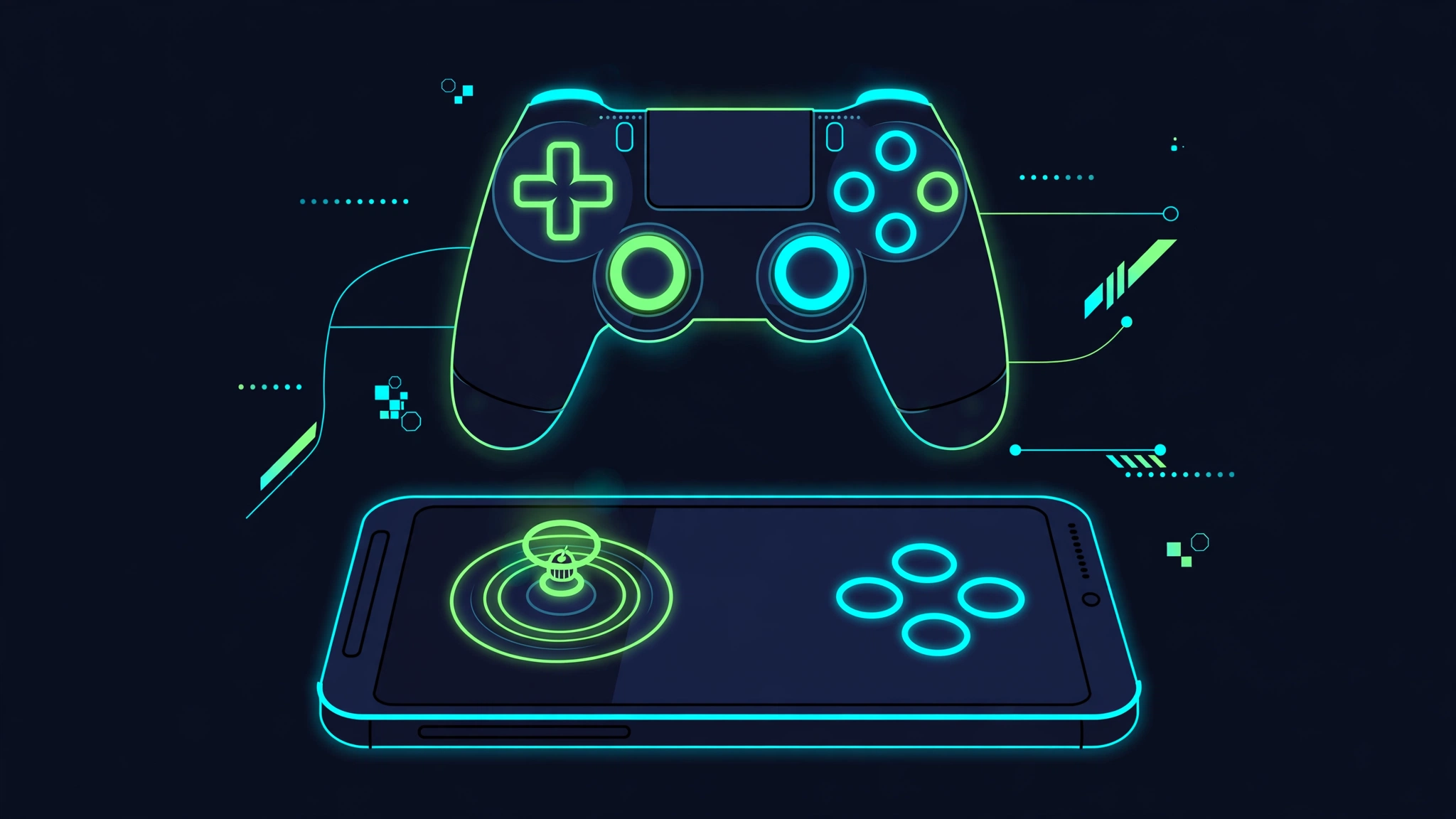
The number one reason controls feel broken in Winlator is the input mode. Simulate Touch Screen turns your finger into a mouse — right for point-and-click, strategy, and RPGs. Emulate Controller turns the touchscreen into a virtual Xbox-style gamepad — right for anything with controller support. Match the mode to the game first; most "controller not working" complaints are just the wrong mode, not broken hardware.
This guide covers every input method once Winlator is installed — if it isn't yet, the setup guide gets you there. Inside: touchscreen gestures (including how to right-click), the on-screen keyboard, building and saving virtual gamepad layouts, XInput, USB/Bluetooth mice, keyboards, and controllers — plus the fix checklist for dead inputs and FPS mouse-look tips.
What are the three input modes?
Winlator's input controls revolve around modes that change how your touchscreen behaves inside the container. Understanding them is the key to everything else:
- Simulate Touch Screen: your taps and swipes act like a finger on a Windows touchscreen. Best for point-and-click games, visual novels, strategy titles, and navigating Windows itself. This is the mode you want when the game was designed for mouse clicks.
- Emulate Controller: the touchscreen becomes a virtual gamepad, and Winlator presents an Xbox 360-style (XInput) controller to Windows programs. Best for games with gamepad support — the game thinks a real controller is plugged in.
- RTS mode: a hybrid tuned for real-time strategy and similar games, mixing touch-as-mouse with keyboard-style shortcuts.
You switch modes in Winlator's input controls settings. The most common input frustration — "my touches do the wrong thing" — is almost always the wrong mode for the game. A game with gamepad support wants Emulate Controller; a point-and-click adventure wants Simulate Touch Screen. Match the mode to the game first, then fine-tune.
How do touchscreen controls and gestures work?
In Simulate Touch Screen mode, your finger is the mouse. The essential gestures:
- Single tap = left click.
- Long press or two-finger tap = right click. That's the answer to "how do I right-click in Winlator" — in touch mode, right-click is a gesture, not a button.
- Drag = click and drag, for selecting, moving windows, and camera control in some games.
It takes a few minutes to get used to, and it works for slower-paced games — RPGs, strategy, point-and-click adventures, visual novels. For anything fast or precise, you'll want the virtual gamepad or a physical peripheral, which is what the rest of this guide covers.
How does the on-screen keyboard work?
Windows games love keyboard input, and Winlator includes an on-screen keyboard you can summon inside the container. Look for the keyboard toggle button in Winlator's in-container toolbar/overlay — tapping it brings up an Android keyboard that types into the Windows program.
Practical notes: it's fine for entering names, passwords, chat messages, and occasional commands. It's miserable for real-time gaming — you can't hold W and steer with a keyboard covering half the screen. For games that need constant keyboard input, map the important keys to the virtual gamepad (below) or connect a physical keyboard (also below).
If the keyboard doesn't appear when you expect it, check that you're tapping the toggle rather than expecting it to auto-appear — Winlator doesn't always summon it automatically the way Android apps do.
How do you set up the virtual gamepad and map buttons?
The virtual gamepad is Winlator's best answer to touch gaming: an on-screen controller overlay whose buttons you map to keyboard keys, mouse actions, or gamepad inputs. Here's how to set it up:
- Switch the input mode to Emulate Controller in Winlator's input controls. This tells Windows programs that an XInput gamepad is connected.
- Open the gamepad configuration (the input controls screen has the gamepad layout editor). You'll see a default overlay: analog stick, face buttons, triggers, D-pad.
- Map each on-screen button. Tap a button in the editor and assign it: a keyboard key (W, Space, E...), a mouse button, or a gamepad button. For a shooter, you'd map the left stick area to WASD, right side to mouse-look, and buttons to click, reload, jump.
- Position and size the controls. Drag buttons where your thumbs naturally rest. Bigger buttons for actions you hit constantly, smaller for menus. From what we've seen, this matters more than people expect — a well-placed layout plays twice as well as the default.
- Save the profile. Winlator supports input profiles, so you can keep one layout for shooters, one for racing games, one for RPGs, and switch without rebuilding from scratch.
Take ten minutes to build a proper layout per genre instead of fighting the default in every game. The default is a starting point, not a finished product. Community members share controller profiles for popular handhelds (the Odin 2 community in particular passes profiles around), which can save you the initial setup — but you'll still want to adjust to your own thumbs.
What is the best mapping philosophy?
Map by frequency, not by logic. The buttons your thumbs hit every second — move, look, primary action — get the biggest, most comfortable positions. Menu keys and once-per-hour actions get tucked into corners. For shooters, mouse-look on the right side of the screen with a generous dead zone beats a cramped "accurate" layout every time. And don't map everything: a clean layout with 8 well-placed buttons plays better than 16 cramped ones.
What is XInput support in Winlator?
XInput is Microsoft's controller API — the reason "Xbox 360 controller" became the PC gaming standard. When Winlator's input mode is set to Emulate Controller, it presents a virtual XInput gamepad to Windows, which means games with gamepad support just work: menus show controller prompts, aim assist behaves, and the inputs register. (Rumble is optimistic on a phone — but the inputs work.)
This matters because a huge fraction of PC games from the last fifteen years have native gamepad support. If a game supports controllers on PC, Emulate Controller mode plus the virtual gamepad (or a physical controller, below) is almost always the smoothest way to play it on a phone. Check a game's PC controller support before building an elaborate keyboard-mapping layout — you might not need one.
How do USB and Bluetooth mice and keyboards work?
For the best experience in many games — especially shooters, strategy, and anything with heavy typing — nothing beats real peripherals. Winlator supports USB and Bluetooth mice and keyboards connected to your Android phone.
Connecting: pair a Bluetooth mouse/keyboard in Android's Bluetooth settings, or plug in a USB mouse/keyboard with a USB-OTG adapter. Android handles the connection; Winlator picks the devices up inside the container automatically. A cheap OTG adapter and a basic wireless mouse is one of the highest-value upgrades for Winlator gaming, in our view.
Right-click with a real mouse works normally — the gesture workarounds are only for touchscreen mode. Scroll wheels, extra mouse buttons, and keyboard shortcuts all pass through.
Pointer capture and FPS games: first-person games need the mouse pointer locked to the window (pointer capture / pointer lock) so moving the mouse turns the camera instead of hitting the screen edge. Winlator has settings related to cursor locking and hiding — if your camera spins wildly or the cursor escapes the game window, look at the input settings for the cursor lock options. There's also a "mouse warp override" environment variable in container settings that affects how mouse movement is handled; it's one of the legitimate uses of the env-var section, specifically for FPS mouse-look problems.
How do you fix FPS mouse-look?
- Use a real mouse if at all possible — touch mouse-look is playable but never great.
- Confirm pointer capture is working: the cursor should be hidden/locked while in game, not visible at the screen edge.
- If look controls are inverted or hypersensitive, fix it in the game's own mouse settings first — container-level tweaks are the backup, not the starting point.
- Lower the game's mouse sensitivity before blaming Winlator; emulation adds no input lag worth chasing, but wrong sensitivity feels exactly like lag.
Why is your controller not working? The checklist
"Winlator controller not working," "virtual gamepad not working," and "mouse not working" are among the most searched Winlator problems. Work through this list in order — the cause is almost always one of these:
- Wrong input mode. Emulate Controller for gamepad-style play, Simulate Touch Screen for mouse-style play. This is the #1 cause. Switch modes and test before touching anything else.
- XInput vs. DInput on physical controllers. Many controllers have a mode switch (often labeled X/D or PC/Android). Winlator expects XInput — if your controller has a hardware mode switch or a mode-toggle button combination, set it to XInput/PC mode.
- Container input settings. Open the container's settings and check the input-related options. A container created with odd input defaults can swallow inputs that work fine in a fresh container — when in doubt, test in a new container to isolate it.
- Android permissions and Bluetooth state. For Bluetooth controllers: confirm it's actually paired and connected in Android settings (paired-but-not-connected is a classic). For USB: try a different OTG adapter or port — cheap adapters fail silently.
- The game's own controller support. Some PC games simply don't support controllers, or need it enabled in their options menu. If the virtual gamepad works in Windows menus but not in-game, the game is the suspect, not Winlator.
- Virtual gamepad mapping actually saved. In the layout editor, confirm your mappings saved to the active profile and the profile is selected. An unsaved mapping that looks right but isn't active fools everyone once.
- Restart the container after input changes. Some input changes only take effect when the container restarts. If you changed modes or mappings and nothing happened, close and relaunch the container before concluding it's broken.
Work the list top to bottom; don't skip #1. The overwhelming majority of "not working" reports are mode mismatches.
Which input method should you use? Compared honestly
| Method | Best for | Strengths | Weaknesses |
|---|---|---|---|
| Touchscreen gestures | Point-and-click, visual novels, strategy, menus | Zero setup; always available | Hopeless for fast or precise input |
| Virtual gamepad | Action games, racing, platformers on the go | Customizable, per-genre profiles, no extra hardware | Eats screen space; never as precise as real buttons |
| USB/Bluetooth mouse + keyboard | Shooters, strategy, heavy typing | Best precision; right-click and shortcuts just work | Needs an OTG adapter or Bluetooth gear; not pocket-portable |
| Physical controller (XInput) | Controller-supported games, fighting, racing | Real buttons and sticks; games show proper prompts | Not every game supports controllers; pairing quirks happen |
What we'd actually recommend: if you play mostly on the couch, a cheap Bluetooth controller in XInput mode plus one saved virtual-gamepad profile per genre covers nearly everything. If shooters are your thing, nothing on a touchscreen beats a real mouse — a basic wireless mouse and an OTG adapter is the highest-value Winlator accessory you can buy. And if you're on a handheld like the Odin 2, its built-in controls in Emulate Controller mode are already the answer — the device guide explains why that handheld punches above its weight.
Which input for which game
Quick reference:
- Shooters (FPS): real mouse + keyboard if possible; otherwise virtual gamepad with right-side mouse-look. Emulate Controller or mouse mode depending on the game's support.
- Racing: Emulate Controller with analog stick mapped — touch steering via the virtual gamepad is genuinely decent.
- RPGs / strategy / point-and-click: Simulate Touch Screen, or a real mouse. These play well with touch.
- Fighting games: virtual gamepad or a physical Bluetooth controller; precise inputs need real buttons.
- Visual novels: touchscreen only. Don't overthink it.
From what we've seen, five minutes of setup per genre pays off for hundreds of hours. And if you're still at the "what even is Winlator" stage, the main Winlator guide covers the app itself — controls are step two, not step one.
Frequently Asked Questions
How do I right-click in Winlator?
With a touchscreen, use a long press or two-finger tap in Simulate Touch Screen mode. With a USB/Bluetooth mouse connected, right-click works normally.
Why is my controller not working in Winlator?
Checklist order: input mode (Emulate Controller for gamepad play), the controller's XInput/DInput hardware mode, Bluetooth pairing state, the game's own controller support, and whether mappings are saved to the active profile. Full walkthrough above.
Can I use a mouse for FPS games in Winlator?
Yes — a USB or Bluetooth mouse works inside the container, and it's the best way to play shooters. Make sure pointer capture/cursor lock is behaving; check the input settings and the mouse warp override if the camera misbehaves.
Does Winlator support Xbox/PlayStation controllers?
Controllers that Android itself recognizes generally work in Winlator, especially in XInput mode for Xbox-style pads. Pair in Android first, then set Winlator's input mode to Emulate Controller.
How do I type in Winlator?
Use the on-screen keyboard toggle in Winlator's in-container toolbar, or connect a physical keyboard via USB-OTG or Bluetooth for anything beyond short text entry.
Can I save different control layouts for different games?
Yes — Winlator supports input profiles. Build one layout per genre (shooter, racing, RPG), save each as a profile, and switch between them instead of rebuilding every time.
Can I use two controllers for local multiplayer?
Don't count on it. Winlator's input stack is built around a single primary input, and local-multiplayer setups are unreliable at best. If a game's co-op matters to you, treat it as a PC game, not a Winlator game.
Does controller vibration or rumble work?
Generally no — don't buy or configure around rumble. Inputs work; force feedback is the part that gets lost in translation.
How do I click and drag in Winlator?
In Simulate Touch Screen mode, press and drag with one finger — it registers as click-and-drag for selecting units, moving windows, and similar. With a real mouse connected, dragging works exactly like on a PC.
My Bluetooth controller pairs but does nothing. Why?
"Paired" and "connected" are different things — confirm it's actually connected in Android's Bluetooth settings. Then check Winlator's input mode (Emulate Controller for gamepad play) and, if your controller has a hardware XInput/DInput switch, set it to XInput. Test in a fresh container to rule out container-level input settings.
Can I play keyboard-heavy games without a physical keyboard?
You can, but map smart: put only the 6–10 keys the game actually needs on the virtual gamepad and leave the rest off the screen. For anything with constant typing — chat, console commands, MMOs — a cheap Bluetooth keyboard is worth more than any layout trick.